

Quick Answer: How to Email Large Files
- For files under 25 MB: attach normally to Gmail or Outlook.
- For files 25 MB – 2 GB: upload to Google Drive, OneDrive, or WeTransfer and email the share link.
- For files 2 GB+: use a dedicated transfer tool like Dropbox Transfer or Filemail.
- For confidential or regulated data (legal, healthcare, finance): use an encrypted file-sharing service like TitanFile that meets HIPAA, SOC 2, and ISO 27001 standards.
It’s 4:55 PM. Your client needs the signed contract before end of day. You attach the PDF, three supporting exhibits, and a short video walkthrough, hit send, and watch the email bounce back with a red banner: “Attachment size exceeds the limit.”
If that scene feels familiar, you’re not alone. Gmail caps attachments at 25 MB, Outlook at 20 MB, and those limits were designed for an era when a high-resolution photo was a novelty, not for 4K videos, scanned case files, or folders of design proofs.
Here’s the part most people don’t realize: emailing large files isn’t really about squeezing them through your inbox at all. The reliable fix is to upload the file to a secure sharing service and email a download link instead. No size cap, no compression artifacts, and when you pick the right tool, no security trade-off either.
In this guide, we’ll walk through 7 ways to email large files in 2026. From quick, free options for one-off transfers to compliance-grade methods trusted by law firms, hospitals, and accounting practices. Pick the one that matches both the file and the stakes attached to it.
Email Attachment Limits (At-a-glance)
Businesses in the legal, financial, and medical industries often handle large amounts of data, such as case files, electronic discovery documents, patient information, and client details. These organizations heavily depend on email to exchange these important documents and details. However, the email system frequently falls short when it comes to sending large files due to attachment size limit restrictions, which is a vital requirement for these types of businesses in the modern era.
Email provider platforms such as Outlook and Gmail impose this limit because email inboxes generally have limited storage space. To prevent you from eating up too much storage on the recipient’s side, they limit you from sending large files via email.
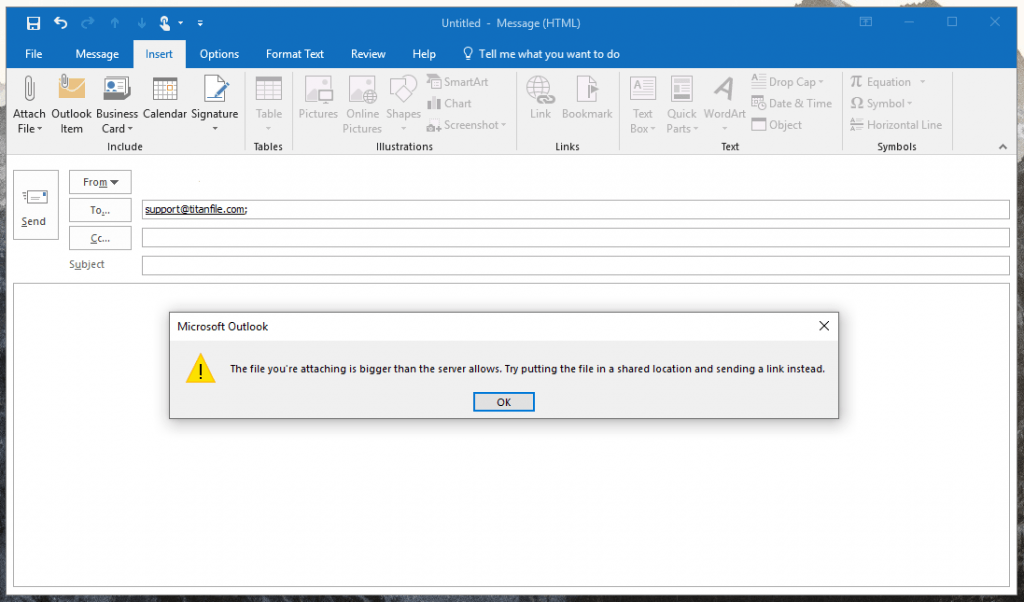
Email Attachment Size Limits in 2026
Why limits exist: servers protect bandwidth and storage; large attachments slow delivery, get flagged by spam filters, and are harder to virus-scan.
Understanding these attachment size limits is important for successful communication as they vary significantly between different platforms. Let’s explore the email attachment size limits set by popular email service providers.
| Email Provider | Max Attachment Size | Built-in Workaround |
| Gmail / Google Workspace | 25 MB per message | Auto-uploads to Google Drive (up to 10 GB link) |
| Outlook.com (free) | 20 MB per message | Manual OneDrive link |
| Microsoft 365 (business) | 25 MB default; admin-configurable up to 150 MB | OneDrive integration (up to 250 GB) |
| Exchange (on-prem) | 10 MB default | Admin-controlled |
| Yahoo Mail | 25 MB per message | Suggests cloud alternatives |
| iCloud Mail | 20 MB; Mail Drop up to 5 GB | Mail Drop (link expires in 30 days) |
| ProtonMail | 25 MB (~19 MB after E2E encoding) | Proton Drive link |
If you are wondering why this “25 MB” limit often fails at 20-22 MB, then it’s due to MIME/Base64 encoding. Most email providers cap attachments between 20 MB and 25 MB per message, and that limit applies to the entire message (body + all files combined), not each file individually. Base64 encoding also inflates files by roughly 33%, so a “25 MB limit” really means about 17–18 MB of actual file content.
Due to these limitations, you’re unable to send large files like as images, videos, archives or work documents effectively via email. As a result, people end up splitting files, zipping folders, or sending USBs by courier. This approach is far from ideal for sharing time-critical legal documents, HIPAA-protected patient information, or last-minute financial reports.
The big question is still unanswered: how to send large files via email? In this guide, we’ll walk you through some simple and secure methods to get the job done.
1. Send large files via email using TitanFile
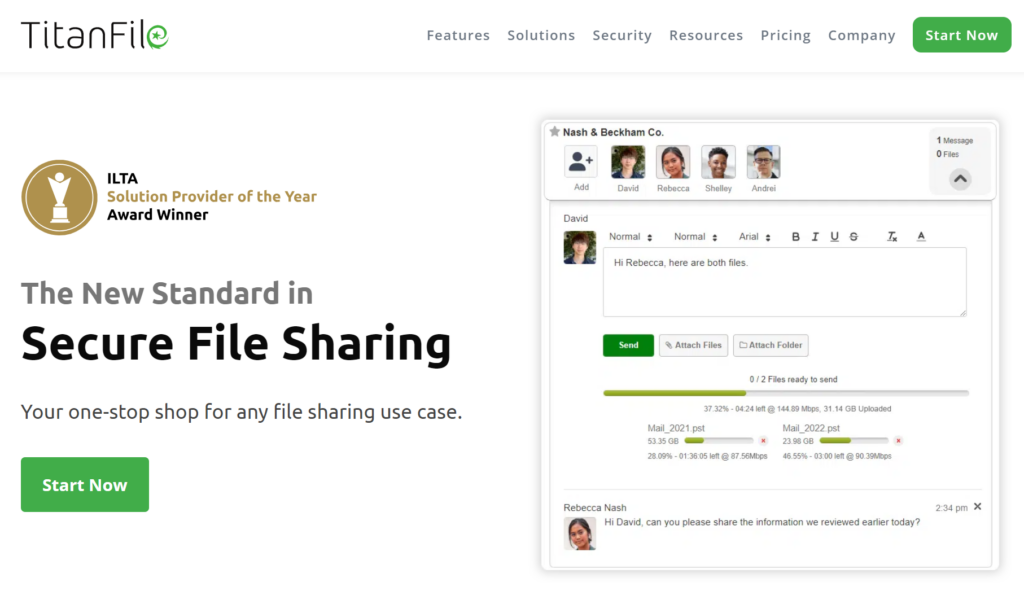
TitanFile is hands-down the most secure and reliable way to send large files through email, especially if security and speed both matter.
Unlike regular email, TitanFile has no file size limits. Files are automatically encrypted and stored with Canadian data residency. The platform is HIPAA, SOC 2 Type II, and ISO 27001 certified and meets strict compliance standards trusted by legal, healthcare, and financial professionals.
TitanFile is a secure file-sharing platform that enables you to bypass email file size limits and exchange big files with your recipients. Your large files will be automatically encrypted by TitanFile to ensure that they’re secure at all times.
If email is already part of your workflow, TitanFile won’t feel like a learning curve. It’s just as easy to use as email, only safer and faster.
Here’s how to send large files via email in just 5 minutes:
1) Sign up for a free trial of TitanFile. (Don’t worry, no credit card is required)
Once you’ve signed up for a trial, check your inbox for instructions on activating and logging into the platform.
2) When you’re logged into TitanFile, you can begin sending files by creating a new channel. Think of a channel as a secure email. You’ll need to enter a subject line.
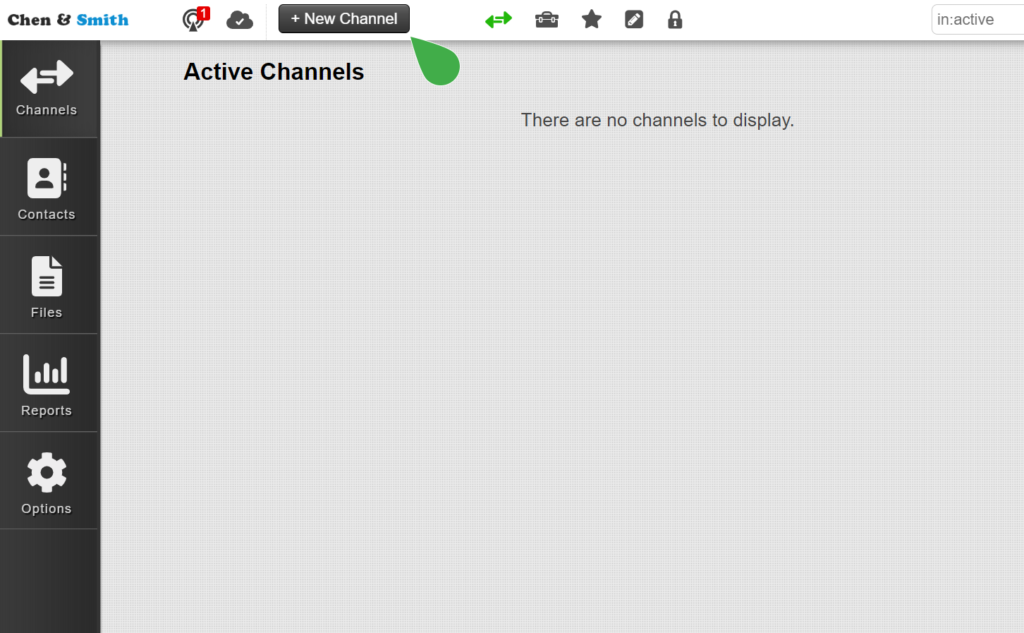
3) Add a contact by clicking the add contact icon. You can add as many contacts as you’d like. Each contact will be able to receive and send files securely to you.
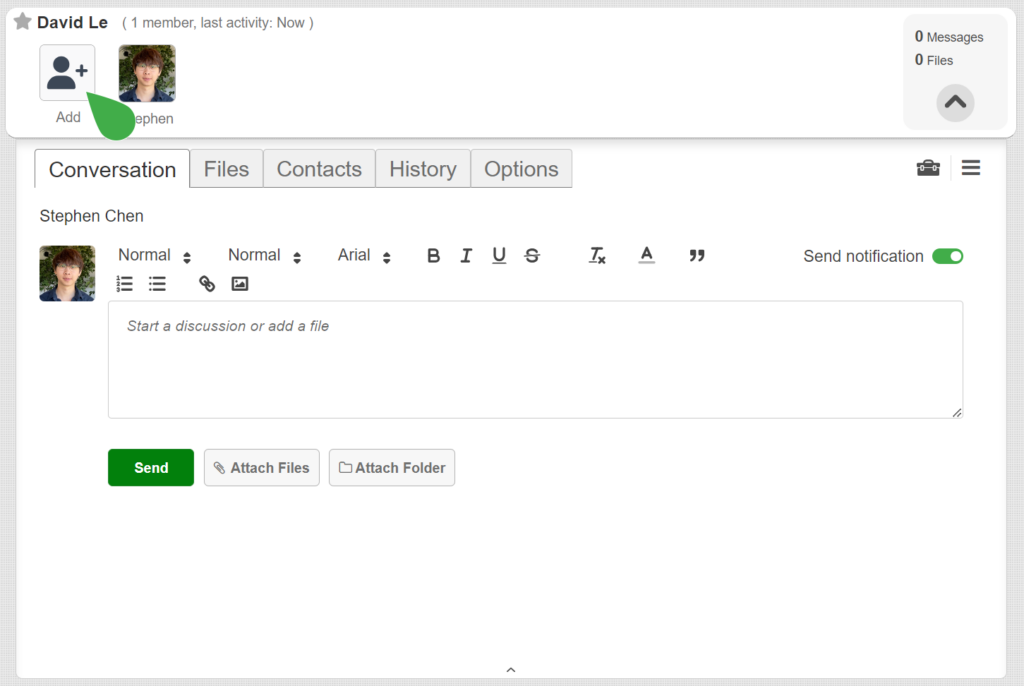
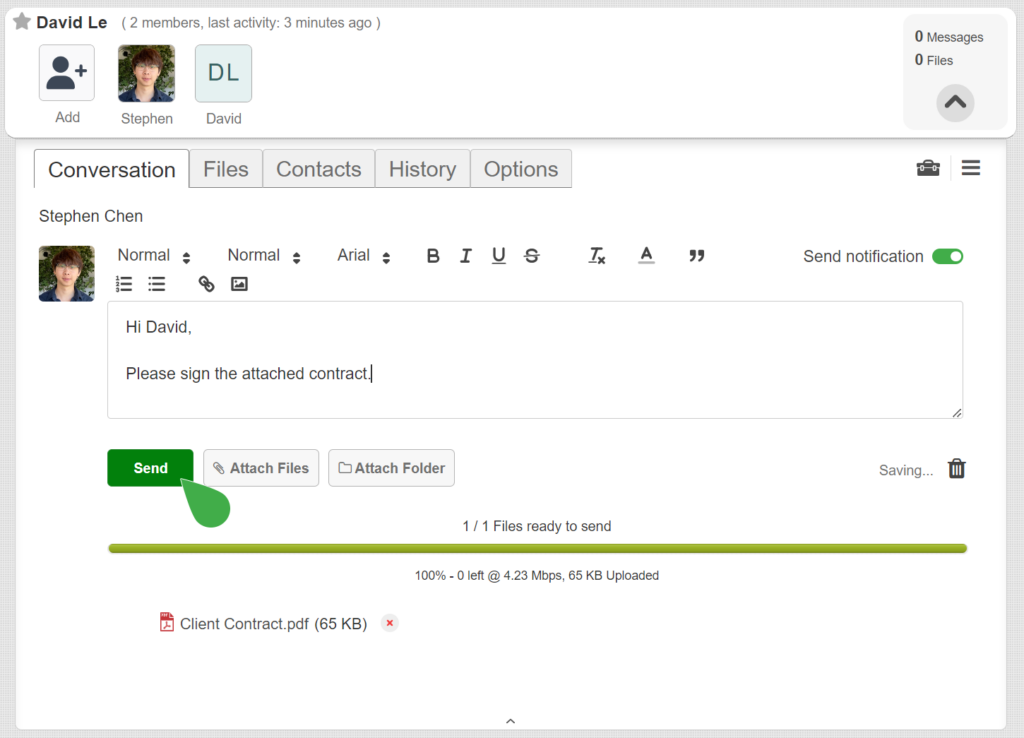
4) Add a file by clicking the attach file button. You can also include a message by typing in the message box.
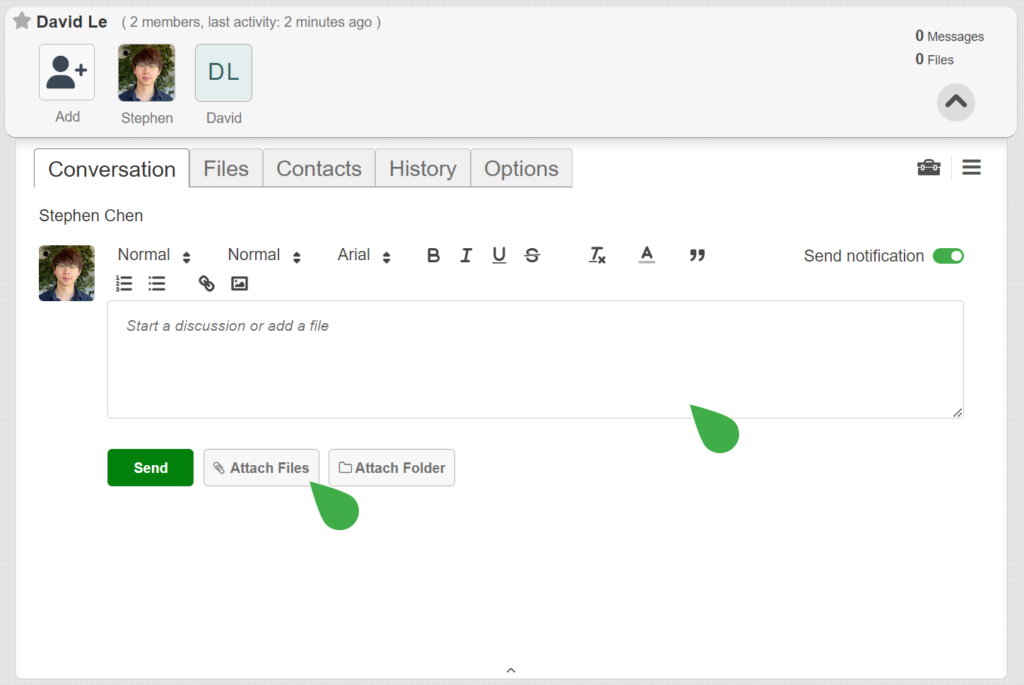
When you’re ready, click Send. And that’s it!
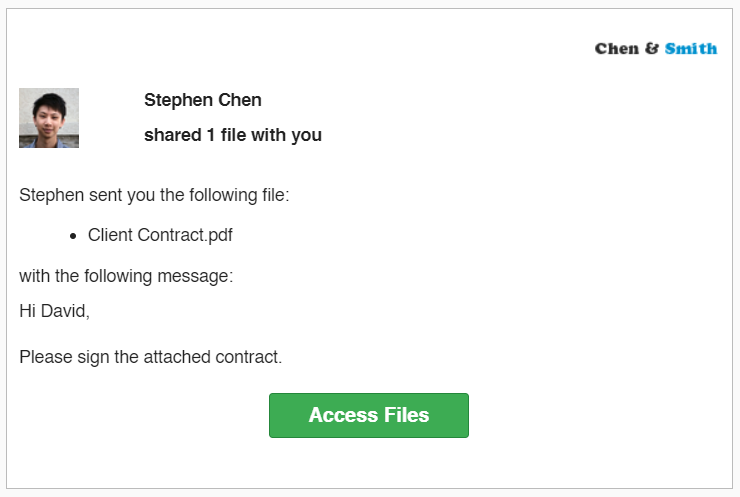
Your recipient will now receive a link to access the files securely.
With TitanFile, there’s no need to involve IT or wait on admin setup. Staff and clients can start sharing large files securely, on their own, from day one.
TitanFile also integrates with Outlook through its SecureSend add-in, allowing users to send large, sensitive files directly from their inbox.
This seamless, self-serve experience is what won over firms like Siskinds:
“The TitanFile platform was a one-stop shop for all of the firm’s file sharing needs”
– Steve Mueller, CIO at Siskinds
2. Send Large Files via Email With Integrated Cloud Services
Google Drive
Google Drive is a cloud storage service offered by Google that enables you to upload large files or and entire folder to the cloud and share them by email.
With a free subscription and a Gmail account, you will get access to uploading up to 15GB of files.
To start emailing large files through Google Drive, first, you’ll need a free account with Google Email. You can set one up for one here.
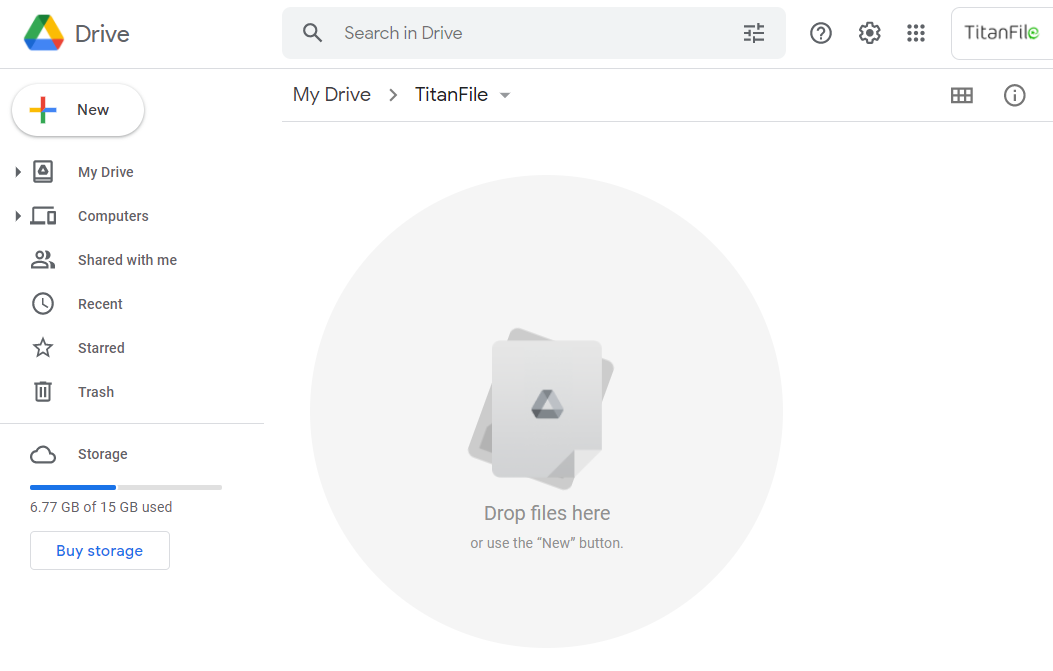
Once you’ve set up your Google account, you can access your Google Drive by visiting drive.google.com. You should see something like this:
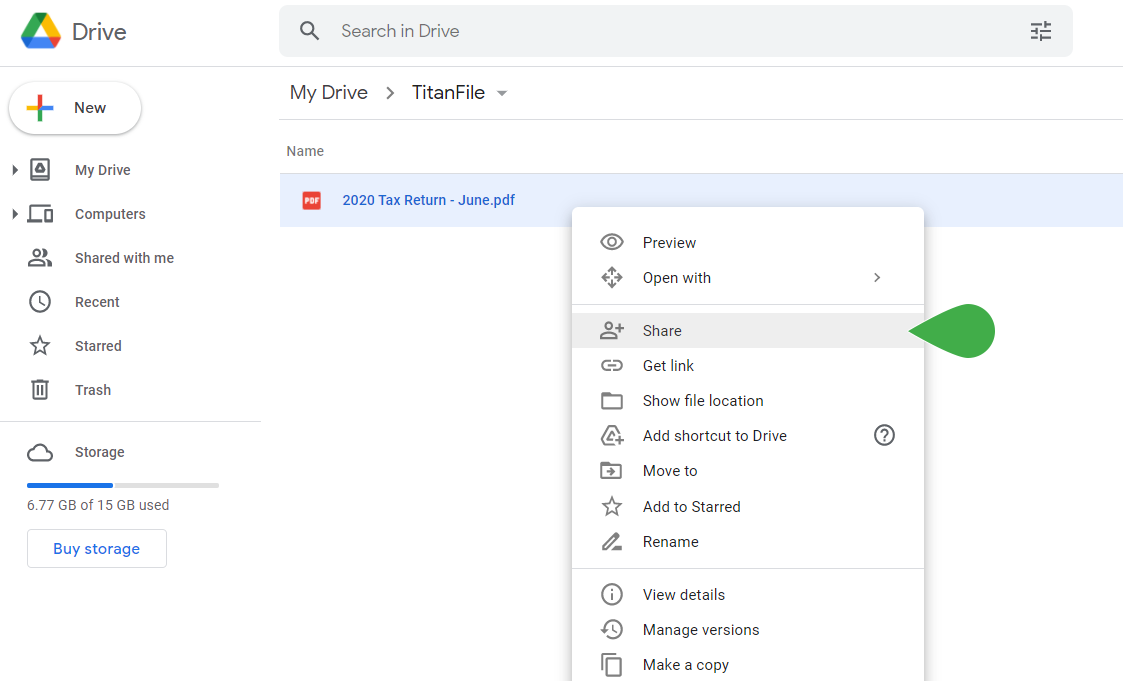
Simply drag and drop the large file into Google Drive, right-click the file and click share.
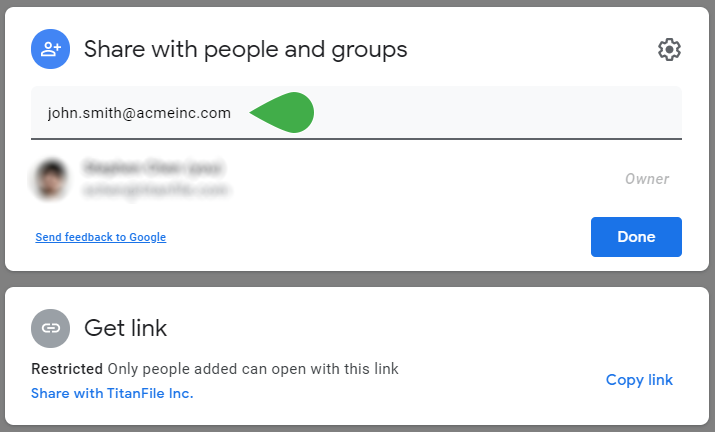
Next, type in the email address of the person you wish to share the file with. Click “Done” and voila! You’ve just shared a large file using Google Drive.
You can also send multiple files at the same time by creating a folder in Google Drive and sharing the folder.
You can also click “Get Link” to get a drive link that you can email your recipient.
iCloud Mail Drop
Mail Drop is Apple’s built-in feature for sending large files via iCloud without clogging your recipient’s inbox if you’re using an Apple device.
If a file is too large to attach in the Mail app on macOS or iOS, Mail Drop automatically kicks in. It uploads the file to iCloud and sends a secure download link to the recipient instead of a traditional email attachment.
You can send files up to 5 GB per message, and the link stays active for 30 days. The recipient doesn’t need an Apple device to download the file, as it can be accessed from their browser.
No setup is needed. Mail Drop works automatically when sending large attachments through the Mail app with iCloud enabled.
3. Compress Large Files Before Emailing Them
If your files are slightly larger than the 20 – 25 megabyte email limit, you may be able to get away with compressing your files before you send them.
However, if your files are much larger than 20 megabytes, it would be a much better solution.
When you compress files, you’re reducing the overall size of huge files in the package.
The process of compressing files will differ depending on what kind of computer you’re on.
Windows Operating System
If you’re on a Windows computer, you can right-click a file, go to “Send to” and click “Compressed (zipped) folder.”
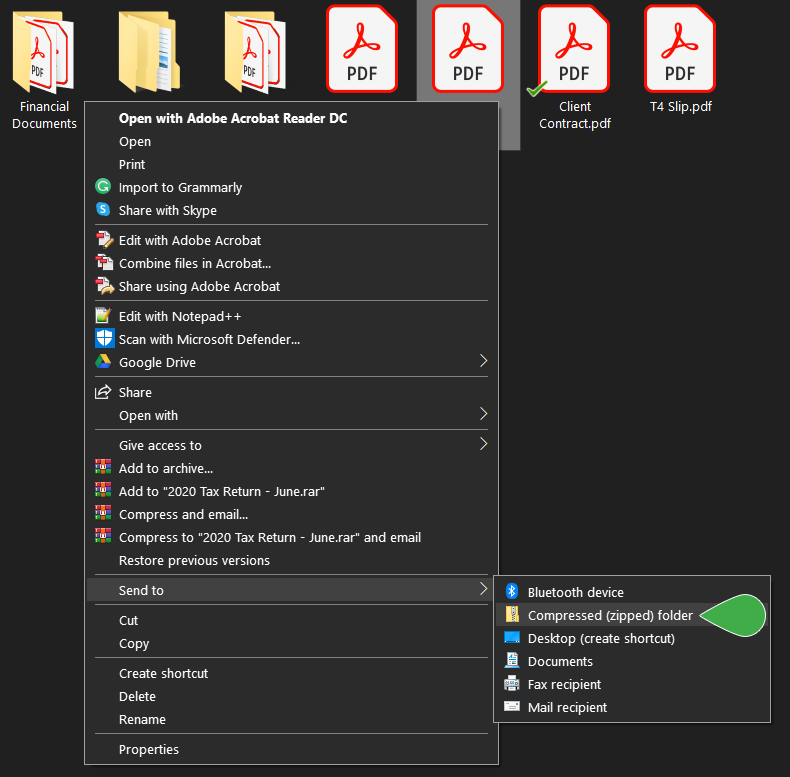
The compressed file will appear in the same folder directory as the original file you compressed.
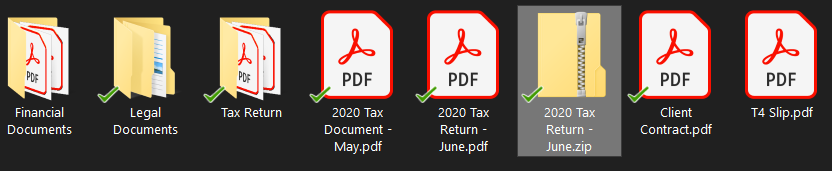
You’ll notice that the compressed file is smaller than the original. You can then email the file!
Mac Operating System
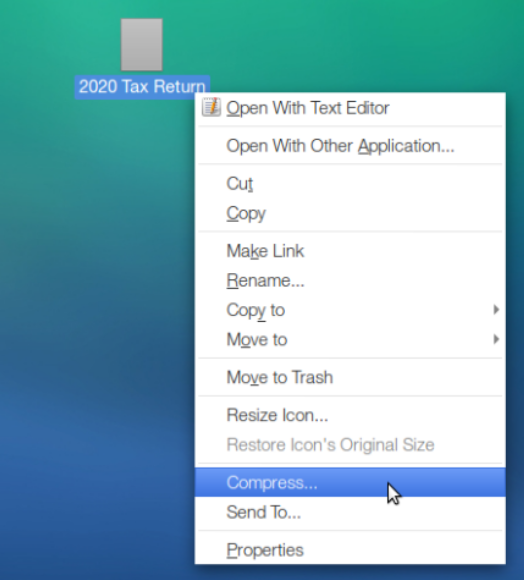
To compress a file on a Mac computer, control-click the file you wish to compress and click “Compress…”
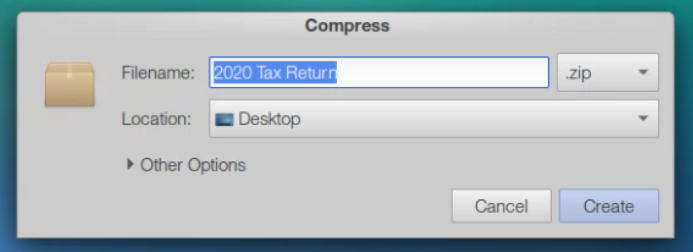
Then, select .zip from the dropdown menu to the right of the filename. Click “Create.”
Once the zip file has been created, you can email the compressed document using your preferred email application.
For even better file compression, you can compress large files using file compression software such as WinZip or WinRar.
4. Send Large Files Via Email With a File Transfer Tool
WeTransfer
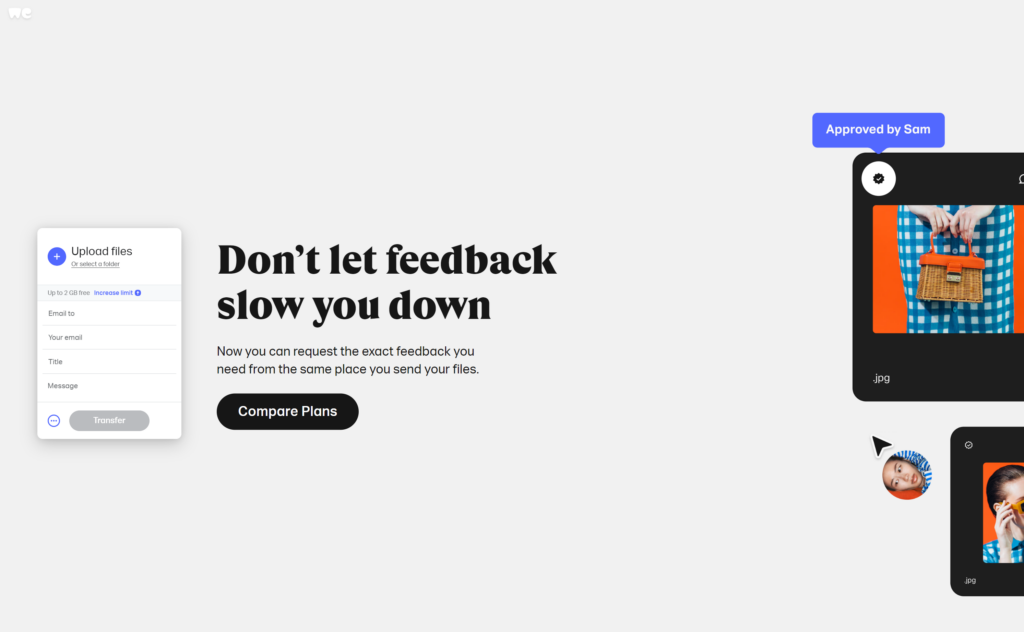
WeTransfer is a great way to transfer large files if you’re not looking for two-way collaboration with the recipient.
The free plan enables you to upload files up to 2GB. If you need to share files that are larger than 2GB, you can upgrade to one of their free plans.
To send large files via WeTransfer, visit WeTransfer.com and click the “Upload Files” button to attach a file, multiple files, or a folder. Then, fill out the form on their site which includes the recipient’s email, your email, a title, and a message.
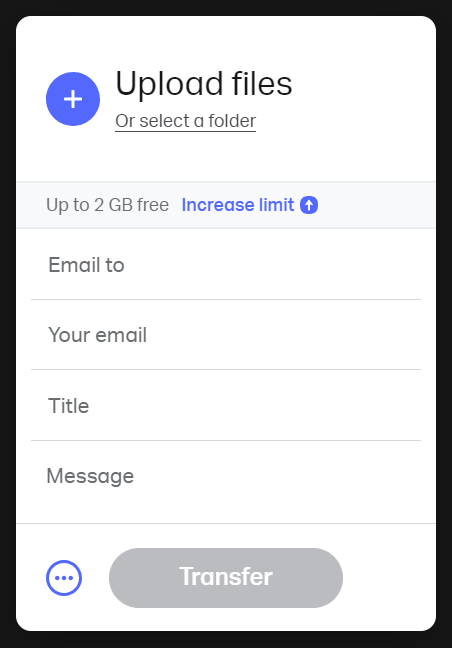
It’ll also give you the option to add password protection to your files.
When you’re ready to send, click Transfer. Your recipient will then receive your files via email and they’ll be able to click on a download link.
SendAnywhere
SendAnywhere is a lesser-known but handy tool for transferring large files. The free plan allows you to send files up to 10 GB without signing up.
To use it, upload your file and choose between generating a 6-digit key, a direct link, or emailing. No installation is needed unless you want to use their desktop or mobile app.
It’s simple, but file availability is limited—it is usually only valid for 48 hours unless you create an account.
Filemail
Filemail is a simple tool designed specifically for sending files fast. The free version lets you send files up to 5 GB without creating an account. The files are stored temporarily, and your recipient gets a link to download them.
Paid plans unlock larger file sizes, permanent storage, and delivery tracking.
TransferNow
TransferNow allows file transfers of up to 5 GB on the free plan and up to 50 GB with a premium account. It supports uploads via drag-and-drop and offers a slick interface for email and link-based sharing.
It also offers tracking and notifications, which are helpful if delivery confirmation is needed.
5. Send Large Files via Email with a Collaboration Platform
Dropbox
Dropbox is another cloud-based tool for sending large files. The free plan allows you to store up to 2 GB, but file transfers are limited to 100 MB unless you upgrade.
To send a large file, upload it to your Dropbox account, then click “Share” and enter the recipient’s email address. You can also generate a shareable link and set permissions like view-only access or expiration dates.
Dropbox also offers Dropbox Transfer, a separate tool that lets you send up to 100 GB (on paid plans) without giving full folder access.
Box
Box is built for teams and businesses, offering free 10 GB of storage, but has a 250 MB upload limit. Paid plans increase both file size and storage capacity.
To share a file, upload it to your Box account, click “Share,” and invite specific users or create a public or password-protected link. You can also set expiration dates and track downloads.
Egnyte
Egnyte is another business-focused file-sharing and storage platform that offers tools for managing and controlling access to large files.
Depending on the setup, files can be stored in the cloud or on-premises. You can generate shareable links and send them via email. You can also apply settings like expiration dates, download limits, and password protection.
Egnyte supports files over 100 GB on certain plans, but it’s more tailored for teams already using it for document management.
6. Email Large Files Using Microsoft OneDrive
If you’re an Outlook or Microsoft 365 user, OneDrive is the most native way to email large files. When you attach a file over the size limit in Outlook, you’re prompted to upload it to OneDrive automatically, and your recipient gets a clickable link instead of a stuck email.
How to email a large file with OneDrive:
- In Outlook, click Attach File and choose your file.
- If it exceeds the limit, Outlook prompts you to Upload to OneDrive.
- Set permissions (view-only or edit) and add an optional password.
- Send as you normally would.
Microsoft 365 Business plans support OneDrive links up to 250 GB. The trade-off? Microsoft holds the encryption keys, so for confidential client data, a zero-knowledge or compliance-grade platform is safer.
7. How to Email Large Files from Mobile (iPhone & Android)
Sending a large video or photo album from your phone? Native email apps will reject anything over 20–25 MB, but each platform has a built-in workaround.
iPhone (Mail Drop): When you attach a large file in the iOS Mail app, iCloud automatically offers Mail Drop, which uploads the file (up to 5 GB) and sends a link instead. The link expires after 30 days.
Android (Gmail + Drive): In the Gmail app, tap Attach → select your file. If it’s over 25 MB, Gmail prompts you to insert it as a Google Drive link. Tap Share to grant the recipient access.
For confidential files on either platform: TitanFile’s mobile app lets you send unlimited file sizes with end-to-end encryption from iOS or Android, useful for lawyers, accountants, and healthcare professionals on the go.

When You Must Go Beyond Email Attachments (Security & Compliance)
Email is convenient, but it’s risky for sensitive files. A misdirected message can’t be recalled, there’s no audit trail, and most email isn’t end-to-end encrypted. For files containing PHI (HIPAA), client-attorney privileged data, financial records, or personal information, regulators increasingly expect a secure file transfer method, not a standard email attachment.
With limited visibility into proof of delivery or proof of access and little to no audit trails for future review, email falls short of meeting the security requirements of large law firms and hospitals. These organizations handle highly sensitive client information every day, such as patient health records, evidence, and case files, and require stricter safeguards than email can provide.
Using a secure alternative like TitanFile, users can maintain a familiar email-like interface while benefiting from enhanced security features. TitanFile provides AES-256 encryption, granular access controls, detailed audit logs, configurable data residency, and compliance with widely recognized regulations such as ISO 27001, SOC 2, HIPAA, PIPEDA, and GDPR.
Send Files Without Limits, Without Worry, With Titanfile
TitanFile fixes file size limits, failed uploads, and security gaps for your organization. It’s faster than email, easier to use than cloud storage tools, and built for professionals who handle confidential information every day.
Start your free trial of TitanFile today and see why 500,000 professionals trust it to share files with their teams and clients confidently.
FAQs
How can I email a file larger than 25 MB?
Upload the file to a cloud service like Google Drive, OneDrive, Dropbox, then paste the share link into your email instead of attaching the file directly. Or use a secure large file sharing platform like TitanFile.
How do I email a large video file?
For files under 5 GB on iPhone, use Mail Drop. For larger or work-related videos, upload to Google Drive, Dropbox, or TitanFile. Avoid compressing video files heavily because quality loss is significant.
What’s the largest file you can email?
Through standard email attachments, the practical limit is about 17 MB (after Base64 encoding overhead). Through link-based services, you can send files up to 250 GB or more.
Is it safe to email large files through Google Drive or Dropbox?
Yes for general use, but both providers hold the encryption keys to your files. For HIPAA, PIPEDA, or SOC 2-regulated data, use a zero-knowledge or compliance-certified platform.
Can I email a large folder instead of individual files?
Yes. Compress the folder into a ZIP first (right-click → “Compress” on Mac or “Send to → Compressed folder” on Windows), or upload the folder to a cloud service and share the folder link.
How do I send large files like videos and images?
You can upload the files to a cloud service like Google Drive, Dropbox, or TitanFile and share the link via email. These tools bypass size limits and keep the quality intact.
Can I send large files from my iPhone or Android device?
Yes. Use apps like TitanFile, Google Drive, or Mail Drop (iOS only). Upload the file in the app and send a secure link by email or message.
How do you send a large audio file?
Compress the file into a ZIP folder or upload it to a tool like WeTransfer, Google Drive, or TitanFile. Then, email the download link instead of attaching the audio file directly.