
Quick Answer: How to Send Confidential Documents Securely
To send confidential documents securely via email, encrypt the file before sending, protect it with a strong password, turn on multi-factor authentication on your email account, and verify the recipient’s identity. For regulated industries handling HIPAA, PIPEDA, or GDPR data, a purpose-built secure file sharing platform that integrates with your email is the cleanest answer.
You need to send a tax return, a signed contract, or a medical record to a client. Email is the obvious channel. The problem is that email was not built for confidential data. Anyone who intercepts an unencrypted message gets the attachment too. For regulated industries handling HIPAA, PIPEDA, or GDPR data, the risk is also a compliance violation.
This guide covers how to send confidential documents securely via email in 2026, the tools that actually work, and the workflows that keep you on the right side of regulation.
What Are the Risks of Sending Documents via Email?
Email is convenient. It is also one of the least secure channels for confidential documents. Three risks come up most often, and one of them carries real regulatory weight.
Common Threats
- Phishing Attacks: Scammers trick you into sharing personal details claiming to be someone you know.
- Interception: Unencrypted emails can be intercepted by hackers, which may expose your files.
- Data Breaches: If someone gains access to your email account, they can steal or misuse your documents.
Legal and Privacy Concerns
Failing to secure emails can lead to serious compliance issues.
- Regulations like HIPAA (U.S.), PIPEDA (Canada), and GDPR (Europe) require strict data protection measures.
- Sharing sensitive files through unsecured channels might result in fines or lawsuits.
How Do You Send Confidential Documents Securely via Email?
Six things make the difference between a casual email and a secure one. Each takes minutes to set up and works on the email tools you already use.
Use Strong Password Protection
Using weak passwords is like leaving your front door unlocked—it’s best to avoid this to keep your accounts secure. Consider creating strong, unique passwords to enhance your security!
- Create passwords that are at least 12-16 characters long. How? You can include symbols, numbers, and a mix of upper and lowercase letters.
- Avoid common words or phrases like “password123” or your pet’s name.
- Use Dashlane or LastPass to generate and store unique passwords for each document.
Pro tip: Change your passwords regularly and avoid reusing them across platforms.
Encrypt Your Documents Before Sending
Encryption is like sealing a letter in a tamper-proof envelope. Only the intended recipient can open it.
- File-level encryption protects individual files before you send them. Tools like WinZip or 7-Zip can encrypt documents with a password.
- Platform-level encryption protects every message and attachment in transit and at rest. Secure file sharing platforms like TitanFile use AES-256 encryption to do this without asking the recipient to set up anything special.
Use Secure Email Services
Not all email providers are built for security. Some go the extra mile to protect your data.
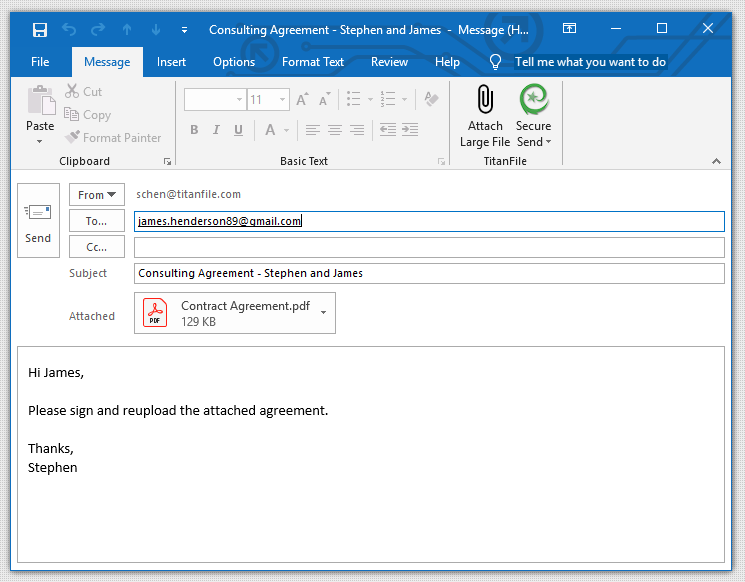
For most professional and regulated use cases, the cleaner answer is to add a secure send layer on top of the email client you already use, rather than asking every recipient to switch providers. TitanFile’s Secure Send® for Outlook is purpose-built for this. It works inside Outlook, encrypts every message in transit and at rest, removes the 25 MB attachment cap, and gives you a tamper-evident audit trail.
Send Documents Through a Secure Link Instead of an Attachment
Attachments are risky. If the email gets intercepted, so does your document.
Sending a link instead of an attachment is good practice in principle. The catch is that consumer cloud services like Google Drive, OneDrive, and Dropbox do not give you the audit logs, granular access, or contract terms most regulated industries need. A purpose-built secure file sharing platform sends a link, gives you per-recipient access control, logs every download, and lets you revoke access on demand.
Verify the Recipient’s Identity and Information
Double-checking who you’re sending files to can save you from a lot of trouble.
- Confirm the recipient’s email address before hitting send.
- If you’re unsure, call or message them directly to verify their identity.
This step matters more in 2026 than it did even a year ago. Deepfake voice scams targeting wire transfers and document requests at law firms and accounting practices are now common. Verify by a known channel, never the channel the request came in on.
TitanFile’s Secure Submit feature also lets you request files securely from clients without making them sign up for an account.
Enable Two-Factor Authentication (2FA) on Your Email Account
Passwords alone aren’t enough. Adding 2FA creates an extra hurdle for hackers.
- 2FA requires you to verify your identity with a second step, like a text code or fingerprint scan.
- Set up 2FA on popular platforms like Gmail, Outlook, or Yahoo by going into your account’s security settings.
This small step can make a big difference in keeping your email account safe.
Keep These Quick Tips in Mind
A few simple steps can go a long way in protecting your data and giving you peace of mind.
- Always log out of your email on shared devices.
- Update your software regularly to patch security vulnerabilities.
- Avoid public Wi-Fi when sending sensitive documents.
Advanced Tips for Email Security
If you handle a high volume of confidential documents, the basics are not enough. Three additional layers worth adding once your foundation is in place.
Use Secure File Transfer Protocols (FTP or SFTP) for Large Files
Email is not built for large files. Most providers cap attachments at 20 to 25 MB. SFTP and modern secure file sharing platforms handle anything larger.
- FTP is like a virtual delivery truck for your files, but it’s not secure on its own.
- SFTP adds a layer of security by encrypting your files during transfer.
For most regulated industries today, a secure file sharing platform with resumable uploads is easier to manage than running an SFTP server. The audit log and access controls are also stronger.
Consider Using Digital Signatures
Want to prove a document is really from you? Use a digital signature.
A digital signature is like an online fingerprint. It confirms that the document hasn’t been tampered with and verifies the sender’s identity.
- Popular tools like DocuSign or Adobe Acrobat make it simple to add a digital signature.
- These signatures also ensure that the recipient knows the file is authentic.
For legal documents or contracts, this extra step can make a huge difference.
Use Document Expiration Features for Added Security
Not all files need to be accessible forever. Setting an expiration date can keep your documents secure after they’ve been viewed.
Secure file sharing platforms like TitanFile let you set expiration dates on shared files and revoke access at any time, even before the link expires.
This is perfect for time-sensitive files, like project drafts or temporary contracts.
Quick Takeaways
- Use SFTP or a secure file sharing platform for large files.
- Add a digital signature to verify authenticity and prevent tampering.
- Set expiration dates on links to limit how long your documents stay accessible.
Avoiding Common Mistakes When Sending Documents via Email
Three mistakes account for most accidental document leaks. Each one feels harmless in the moment. Each one shows up in real breach reports.
Sending Unencrypted Attachments
Attachments are like postcards. If they’re unencrypted, anyone can read them.
- Unencrypted files are easy targets for hackers. They can intercept and misuse your data.
- Instead, use tools like WinZip or 7-Zip to encrypt your files before attaching them.
- For an easier solution, consider secure platforms like TitanFile, which encrypts files automatically.
Relying on Weak Passwords
Passwords are your first line of defense. Weak ones don’t stand a chance.
- Avoid common passwords like “123456” or “password.” Hackers love them.
- Use a mix of letters, numbers, and symbols. For example, “P@ssw0rd!123” is much stronger.
- A password manager like LastPass can help you create and store secure passwords easily.
Not Updating Security Settings Regularly
Outdated settings leave doors open for cyber attacks.
- Check your email platform’s security settings at least once a month.
- Enable two-factor authentication (2FA) for added protection. It’s a game-changer.
- Update your software to patch any security flaws. Most updates include fixes for vulnerabilities.
Quick Fixes
- Encrypt every attachment you send.
- Create strong passwords for all your files.
- Stay on top of security updates and settings.
What Is the Best Tool for Sending Confidential Documents Securely?
For sending one-off confidential documents to a friend or family member, a password-protected ZIP file and a strong email password may be enough. For anyone handling client data, medical records, financial documents, or anything that touches a compliance regulation, the right answer is a purpose-built secure file sharing platform.
Why TitanFile Is the Best Tool for Sending Confidential Documents
TitanFile is an award-winning secure file sharing platform built for legal, healthcare, accounting, financial services, and government workflows. It is designed to work the way email already does, with the security email never had.
- AES-256 encryption in transit and at rest, including backups
- Multi-factor authentication on every account
- Tamper-evident audit logs for proof of delivery and proof of access
- Granular access controls and per-document permissions
- Secure Send for Outlook so you can send encrypted emails from the inbox you already use
- SOC 2 Type II and ISO 27001 certifications
- Compliance with HIPAA, PIPEDA, and GDPR
- Geographic data residency options across the U.S., Canada, Europe, Australia, and the Middle East
Most teams are running on TitanFile within a day. Start a 15-day free trial or book a demo to see how it fits your workflow.
FAQs about Sending Confidential Documents via Email
A few questions that come up most often when teams move from regular email to secure document sharing.
What is the safest way to send a confidential document via email?
The safest way is to use a secure file sharing platform that encrypts the message and attachment with AES-256 encryption, requires multi-factor authentication, and produces an audit log. If you must use regular email, encrypt the file with a strong password before attaching, send the password through a separate channel, and turn on MFA on your email account.
Can I send confidential documents via Gmail or Outlook?
You can, but the default settings are not secure enough for client data, medical records, or anything regulated. Gmail and Outlook both offer encrypted send options, but they require both sender and recipient to be on the same platform. A secure file sharing add-in for Outlook removes that limitation.
Do I need encryption to send legal or medical documents?
Yes. ABA Model Rule 1.6 requires lawyers to make reasonable efforts to protect client information. The current HIPAA Security Rule treats encryption as addressable, but the proposed 2026 update would make it mandatory. Encryption is now the practical baseline for any regulated work.
What is the difference between password-protecting a PDF and using a secure file sharing platform?
Password-protecting a PDF stops casual access but does not produce an audit trail, does not let you revoke access after sending, and depends on the recipient handling the password safely. A secure file sharing platform tracks every access, lets you revoke at any time, and removes the need to share a password at all.
How big a file can I send through secure email?
Standard email caps at 20 to 25 MB. Microsoft 365 supports up to 150 MB on some plans. For anything larger, including discovery documents, deposition videos, or medical imaging files, a secure file sharing platform with resumable uploads is the practical answer.
Conclusion
Sending confidential documents securely via email comes down to a few simple habits and the right tool. Encrypt the file. Turn on MFA. Verify the recipient. Use a secure file sharing platform for anything regulated. None of these take long to set up, and the cost of skipping them is much higher than the cost of doing them.
Start a 15-day free trial of TitanFile or book a demo to see how it fits your workflow. No credit card required.