
Quick Answer: How to Send Secure Email in Outlook
Outlook gives you three native ways to send secure email — S/MIME, Microsoft Purview encryption, and sensitivity labels. Each one has friction: recipient certificates, tenant licensing, or attachment caps that block real legal, healthcare, and finance work. The fastest fix is to add an encrypted send layer inside Outlook itself, like TitanFile’s Secure Send® add-in, which protects every message and removes the 25 MB attachment cap.
Your assistant just attached a 40 MB client file to an Outlook draft. The Send button is one click away. The message will leave the building unencrypted, the attachment will bounce off the recipient’s mailbox limit, and the audit trail will not exist.
Email keeps business moving, but it’s also one of the biggest security risks organizations face today. Every day, law firms, healthcare providers, government agencies, and accounting firms depend on Microsoft Outlook to share sensitive information. The problem? Just pressing “Send” doesn’t guarantee your message is safe. Without the right safeguards to send secure email in Outlook, emails can be intercepted, exposed, or even bounce back because of file size limits.
That’s why sending secure email in Outlook isn’t just a “nice-to-have” anymore, but it’s a necessity. While Microsoft does provide built-in encryption tools like Encrypt/Do Not Forward and S/MIME, they often fall short when it comes to real-world needs: collaborating with outside partners, transferring large files, and meeting strict compliance standards.
In this blog, we’ll break down what Outlook’s encryption can (and can’t) do, why sending secure email has never been more important, and how TitanFile’s Secure Send for Outlook makes secure communication with clients as simple as hitting “Send.”

Microsoft Outlook’s Encryption Problem
The best way to protect the information shared is by encrypting it. While Outlook has the option to send encrypted emails, there are several limitations that will prevent you from being able to send emails securely. Let’s see how Outlook’s native encryption is powerful but not so practical to implement in real-world situations.
1. Fragmented Experience Across Outlook Versions
S/MIME finally landed in new Outlook in early 2025, but plenty of organizations are still juggling new and classic Outlook in parallel. Inconsistent feature availability across versions makes consistent secure-email policy hard to enforce.
2. Recipient Friction Outside Microsoft 365
S/MIME requires both sender and recipient to hold certificates, which is impractical for ad-hoc external sharing. Purview-encrypted mail works with Gmail and Yahoo through a secure browser view and one-time passcode, but the extra steps are confusing for non-technical recipients and create a poor user experience.
3. Attachment Size Limits Still Apply
Even with S/MIME and Purview encryption in play, Outlook’s attachment size limits do not move. Most users cap at 20–25 MB; Microsoft 365 subscribers reach 150 MB at the top end. For real legal and healthcare workflows such as discovery sets, deposition videos, and imaging studies, that is not enough.
4. Policy/Label Complexity
Purview encryption and sensitivity labels are policy-driven. Configuration and licensing sit with IT. If the tenant is not set up correctly, encryption options simply disappear from end-user menus, which leaves attorneys and clinicians without obvious paths to protect a single message.
Outlook’s encryption also lacks clean auditing. There is no built-in, tamper-evident log showing exactly who opened, accessed, or downloaded a specific message and attachment. For regulated industries where audit trails are not optional, that gap is enough to disqualify Outlook on its own.
So while Outlook’s encryption features are available and can be useful in certain cases, they come with significant drawbacks: they can be difficult to use, overly complex, limited by file size restrictions, and lack the detailed audit logs many organizations require.
The Solution: Titanfile’s Secure Send® for Outlook
For teams that need to send secure email in Outlook without the friction, TitanFile’s Secure Send add-in is purpose-built for the job. It lives inside Outlook itself, so attorneys, accountants, and clinicians keep working in the interface they already know; they just hit a different Send button.
With Secure Send, the 20–25 MB Outlook attachment cap goes away. Files of any size route through TitanFile’s secure portal, while the message itself stays encrypted in transit and at rest. Neither you nor your recipient needs an S/MIME certificate or a matching Microsoft 365 license. The first time a recipient gets a secure message, they create a free account in seconds.

TitanFile is ISO 27001 and SOC 2 Type II certified, and compliant with HIPAA, PIPEDA, and GDPR. Data residency options span the USA, Canada, Europe, Australia, and the Middle East to match regional privacy rules. Unlike standard Outlook, TitanFile provides tamper-evident audit logs that offer essential visibility through verified proof of delivery and access.
TitanFile’s Secure Send is the easiest and most reliable way to send encrypted emails and attachments from Outlook without the usual roadblocks.
How to Send Secure® Emails in Outlook
With TitanFile’s Secure Send add-in, the steps are short.
1. Sign up for TitanFile to get access to the Secure Send add-in for Outlook™. Don’t worry, no credit card is required!
2. Download TitanFile’s Secure Send add-on from here.
3. After you install the Secure Send add-in, Secure Send will now appear in Outlook’s navigation ribbon (see the screenshot below).
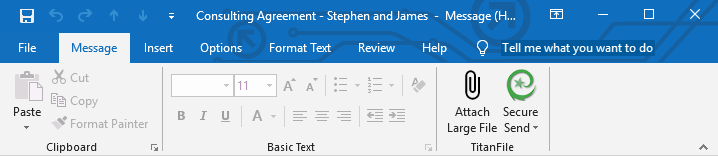
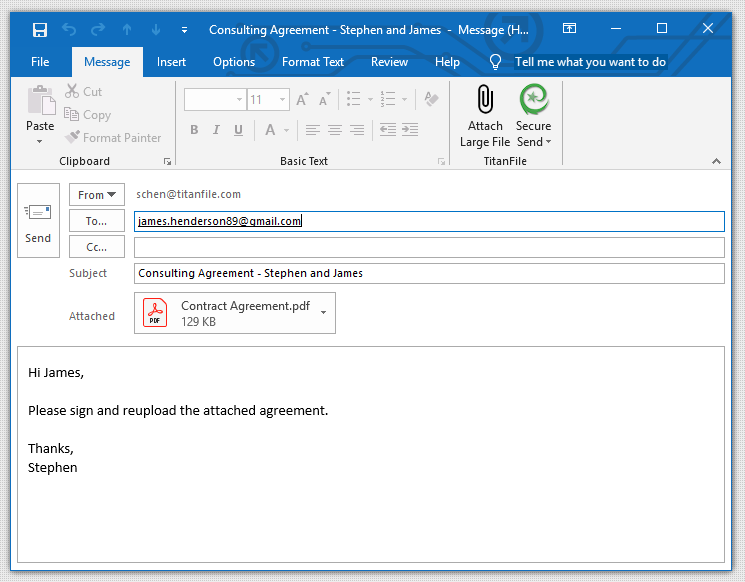
4. Craft your email message by adding an email, subject line, and message
5. Attach a small file the normal way, or click Attach Large File to send anything larger than 25 MB.
6. Click the Secure Send button instead of Outlook’s send button
That is it. The message is encrypted, tracked, and delivered through TitanFile’s secure portal.
Your recipients will receive an email with a button to access the email message and files securely. See the screenshot below.
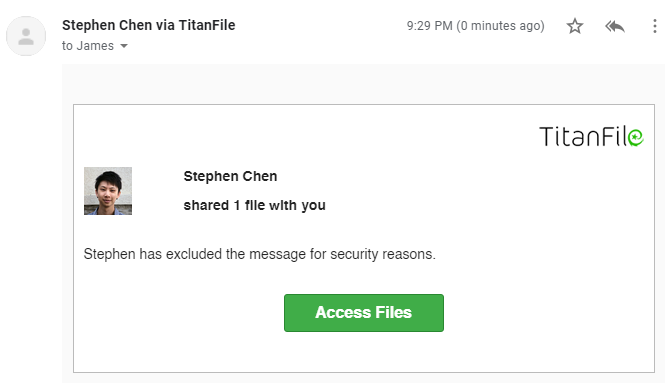
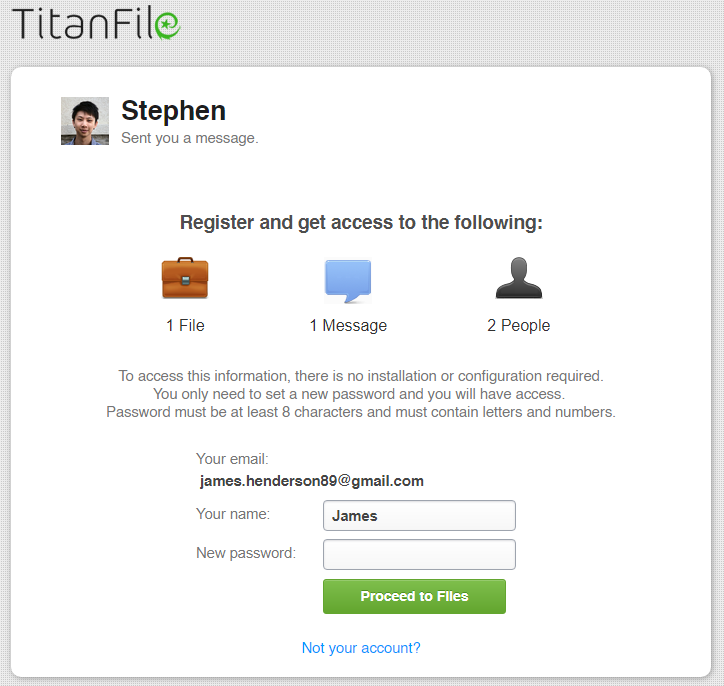
When your recipients click on the “Access Files” button, they’ll get redirected to a page where they can set a name and password for an account to access the secured email attachments.
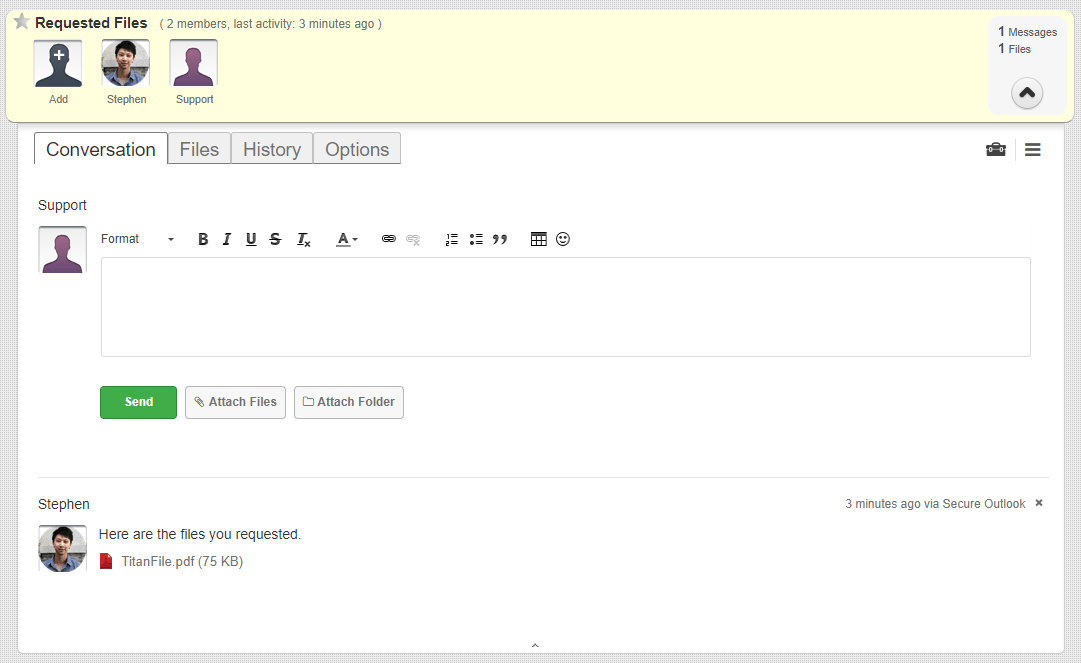
After creating their account, they will gain access to a secure two-way communication channel and have access to the files and messages you sent.
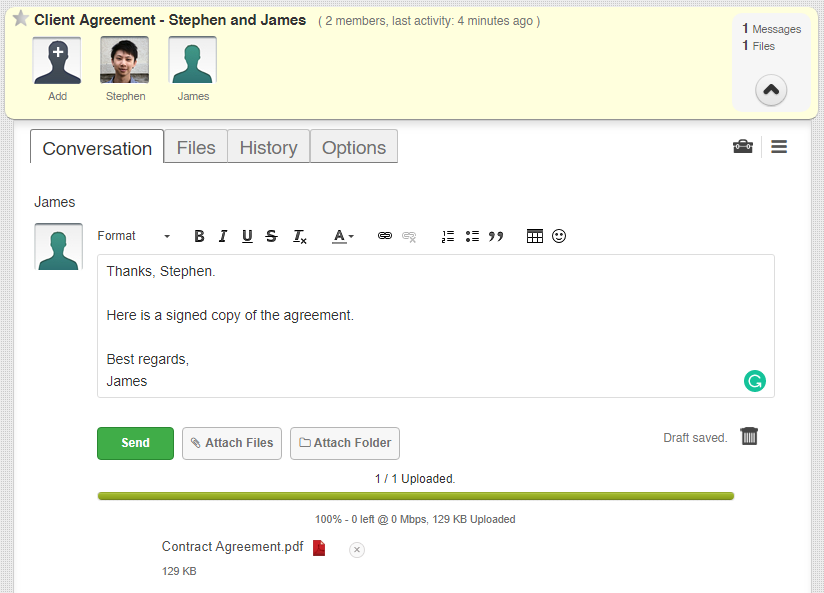
Recipients will also be able to send messages and files back to you.
It’s as simple as that!
Wrapping Up
Outlook’s built-in encryption has a place. But the moment your work crosses the tenant boundary, the moment an attachment crosses 25 MB, or the moment audit-readiness becomes non-negotiable, the native tools fall short.
TitanFile’s Secure Send for Outlook closes those gaps without asking your team to learn new software. It lives inside the Outlook ribbon, removes the file-size cap, encrypts every message in transit and at rest, and gives you the proof-of-access trail regulated work requires.
Are you ready to make Outlook truly secure? Sign up for a 15-day free trial with us (no credit card required). If you’re interested in discovering more of TitanFile’s advanced security features, you can schedule a 15-minute personalized demo with one of our product experts.
Send Secure Email in Outlook: FAQs
1. Can people on Gmail open my Outlook‑encrypted message?
Yes. They click “Read the message” and open it in a secure browser via sign‑in or a one‑time passcode. This is Microsoft’s intended experience for external recipients.
2. What if the Encrypt button is missing in Outlook?
It’s usually a tenant configuration/licensing issue. Microsoft notes that if IRM/Purview isn’t set up, Encrypt may not appear.
3. How big can a secure Outlook email be?
Most users are capped at 20–25 MB. Microsoft 365 subscribers can reach 150 MB on supported plans. Anything beyond that needs a secure file transfer layer such as TitanFile Secure Send.
4. What’s the fastest way to send secure email in Outlook with large files?
Use the TitanFile Secure Send for Outlook add-in: simply compose your email as usual, then click Secure Send. Your message and attachments are automatically encrypted, tracked, and delivered through TitanFile’s secure portal.
5. What is the difference between encrypting an email and encrypting a file?
Encrypting the email protects the message in transit and at rest. Encrypting the file protects the document itself, even after it is downloaded. Secure Send for Outlook does both in one flow.